Building an Internet Connected Phone with PeerJS
ProgrammingWeb DevelopmentJavaScript
Since the start of 2020, video calling has taken over many of our lives. While we’re crushed under the weight of Zoom & Google Meet invite links, this boom has brought many internet based video and audio apps to the forefront. If you read my last post you’ll know that I’ve been fiddling around with WebRTC. WebRTC is a group of API endpoints and protocols that make it possible to send data (in the form of audio, video or anything else really) from one peer/device to another without the need of a traditional server. The issue is, WebRTC is pretty complicated to use and develop with in and of itself, handling the signalling service and knowing when to call the right endpoint can get confusing. But I come bearing good news; PeerJS is a WebRTC framework that abstracts all of the ice and signalling logic so that you can focus on the functionality of your application. There are two parts to PeerJS, the client-side framework and the server, we’ll be using both but most of our work will be handling the client-side code.
Let’s Build A Phone Since We’re All Fed Up of Video #
Before we get started, this is an intermediate level tutorial so you should already be comfortable with:
-
Vanilla JavaScript
-
Node
-
Express
-
HTML
I’ll be focussing solely on the JavaScript side of things, so you can copy the HTML & CSS files directly, we won’t be fiddling with them too much. Before we get started, you’ll want to make sure you’ve installed node and your favourite package manager, I’ll be using Yarn but you can use npm or any manager you’re comfortable with.
If you learn better by looking at code and following step by step code, I’ve also written this tutorial in code, which you can use instead.
Setup #
So let’s set things up. First you’ll need to run mkdir audio_app
and then cd audio_app & finally you’ll want to create a new app by running yarn init . Follow the prompts, give a name, version, description, etc to your project. Next install the dependencies:
Peer will be used for the peer server and PeerJS will be used to access the PeerJS API and framework. Your package.json should look like this when you’ve finished installing the dependencies:
{
  "name": "audio_app",
  "version": "1.0.0",
  "description": "An audio app using WebRTC",
  "main": "server.js",
  "scripts": {
    "start": "node server.js",
    "test": "echo \"Error: no test specified\" && exit 1"
  },
  "keywords": [],
  "author": "Lola Odelola",
  "license": "MIT",
  "dependencies": {
    "express": "^4.17.1",
    "peer": "^0.5.3",
    "peerjs": "^1.3.1"
  }
}
To finish up the setup, you’ll want to copy the HTML & CSS files I mentioned before, into your project folder.
Building the Server #
The server file will look like a regular Express server file with one difference, the Peer server.
You’ll need to require the peer server at the top of the file const {ExpressPeerServer} = require('peer') , this will ensure that we have access to the peer server.
You then need to actually create the peer server:
const peerServer = ExpressPeerServer(server, {
    proxied: true,
    debug: true,
    path: '/myapp',
    ssl: {}
});
We use the ExpressPeerServer object created earlier to create the peer server and pass it some options. The peer server is what will handle the signalling required for WebRTC so we don’t have to worry about STUN/TURN servers or other protocols as this abstracts that logic for us.
Finally, you’ll need to tell your app to use the peerServer by calling app.use(peerServer) . Your finished server.js should include the other necessary dependencies as you’d include in a server file, as well as serving the index.html file to the root path so, it should look like this when finished:
const express = require("express");
const http = require('http');
const path = require('path');
const app = express();
const server = http.createServer(app);
const { ExpressPeerServer } = require('peer');
const port = process.env.PORT || "8000";

const peerServer = ExpressPeerServer(server, {
    proxied: true,
    debug: true,
    path: '/myapp',
    ssl: {}
});

app.use(peerServer);

app.use(express.static(path.join(__dirname)));

app.get("/", (request, response) => {
    response.sendFile(__dirname + "/index.html");
});

server.listen(port);
console.log('Listening on: ' + port);
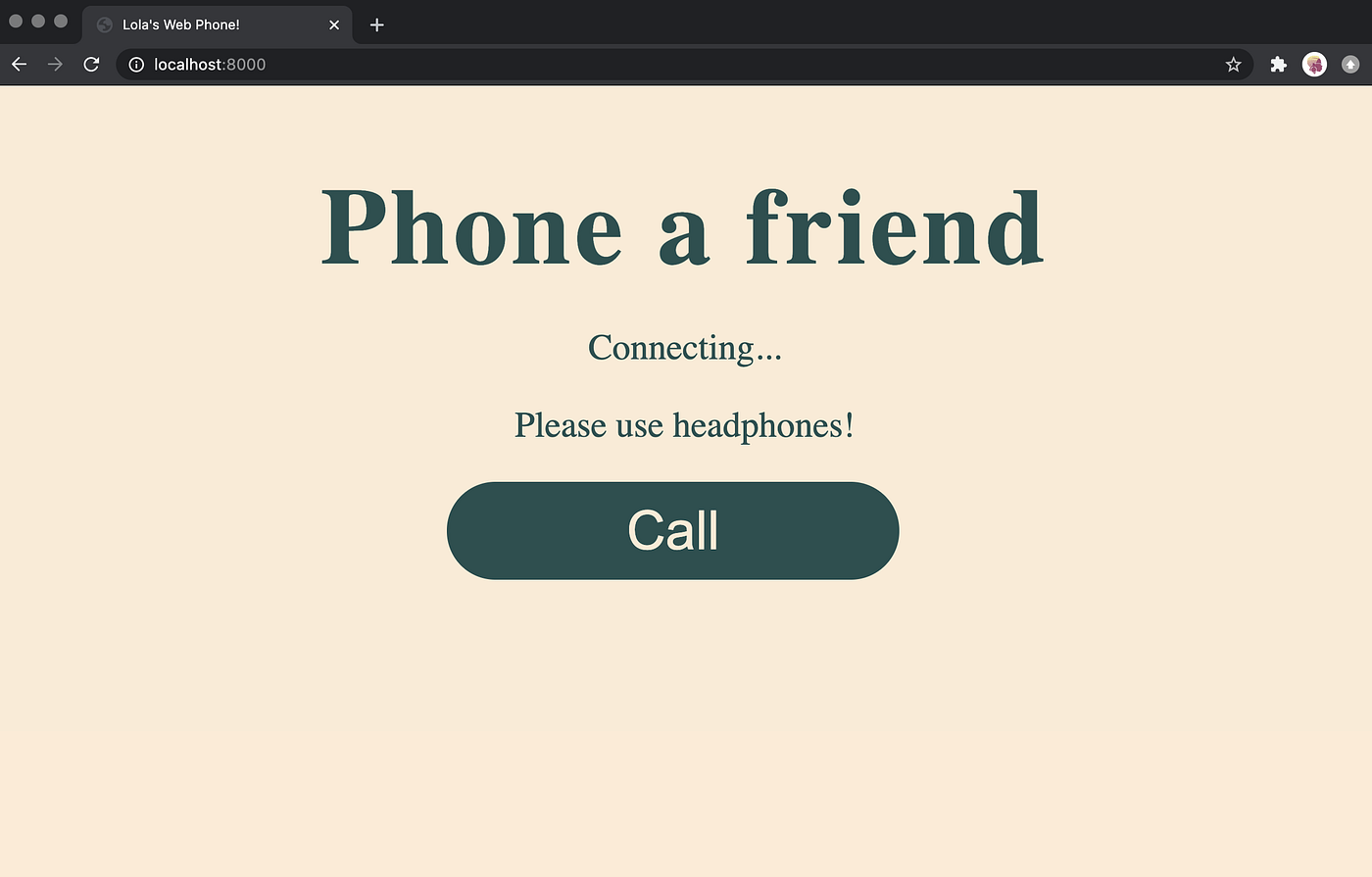
You should be able to connect to your app via local host, in my server.js I’m using port 8000(defined on line 7) but you may be using another port number. Run node . in your terminal and visit localhost:8000 in your browser and you should see a page that looks like this
The Good Part #
This is the part you’ve been waiting for, actually creating the peer connection and call logic. This is going to be an involved process so strap in. First up, create a script.js file, this is where all your logic will live.
We need to create a peer object with an ID. The ID will be used to connect two peers together and if you don’t create one, one will be assigned to the peer.
const peer = new Peer(''+Math.floor(Math.random()*2**18).toString(36).padStart(4,0), {
    host: location.hostname,
    debug: 1,
    path: '/myapp'
});
You’ll then need to attach the peer to the window so that it’s accessible
window.peer = peer;In another tab in your terminal, start the peer server by running:
peerjs --port 443 --key peerjs --path /myappAfter you’ve created the peer, you’ll want to get the browser’s permission to access the microphone. We’ll be using the getUserMedia function on the navigator.MediaDevices object, which is part of the Media Devices Web interface. The getUserMedia endpoint takes a constraints object which specifies which permissions are needed. getUserMedia is a promise which when successfully resolved returns a MediaStream object. In this case this is going to be the audio from our stream. If the promise isn’t successfully resolved, you’ll want to catch and display the error.
function getLocalStream() {
    navigator.mediaDevices.getUserMedia({video: false, audio: true}).then( stream => {
        window.localStream = stream; // A
        window.localAudio.srcObject = stream; // B
        window.localAudio.autoplay = true; // C
    }).catch( err => {
        console.log("u got an error:" + err)
    });
}
A. window.localStream = stream : here we’re attaching the MediaStream object (which we have assigned to stream on the previous line) to the window as the localStream .
B. window.localAudio.srcObject = stream: in our HTML, we have an audio element with the ID localAudio, we’re setting that element’s src attribute to be the MediaStream returned by the promise.
C. window.localAudio.autoplay = true: we’re setting the autoplay attribute for the audio element to autoplay.
When you call your getLocalStream function and refresh your browser, you should see the following permission pop up:
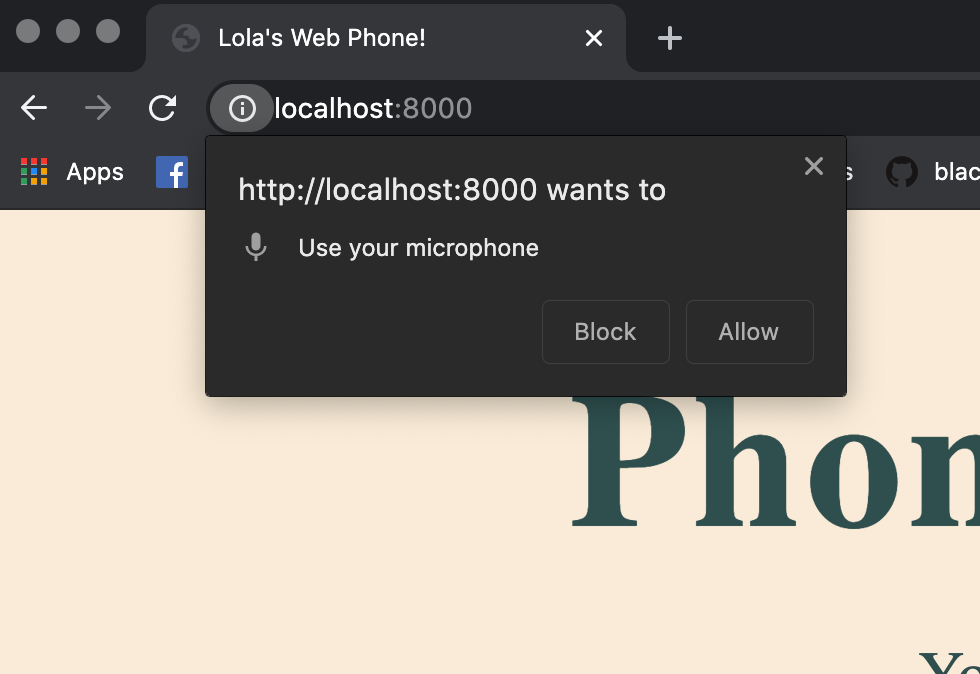
Use headphones before you allow so that when you unmute yourself later, you don’t get any feedback. If you don’t see this, open the inspector and see if you have any errors. Make sure your javascript file is correctly linked to your index.html too.
This what it should all look like together
/* global Peer */


/**
 * Gets the local audio stream of the current caller
 * @param callbacks - an object to set the success/error behaviour
 * @returns {void}
 */


function getLocalStream() {
    navigator.mediaDevices.getUserMedia({video: false, audio: true}).then( stream => {
        window.localStream = stream;
        window.localAudio.srcObject = stream;
        window.localAudio.autoplay = true;
    }).catch( err => {
        console.log("u got an error:" + err)
    });
}

getLocalStream();
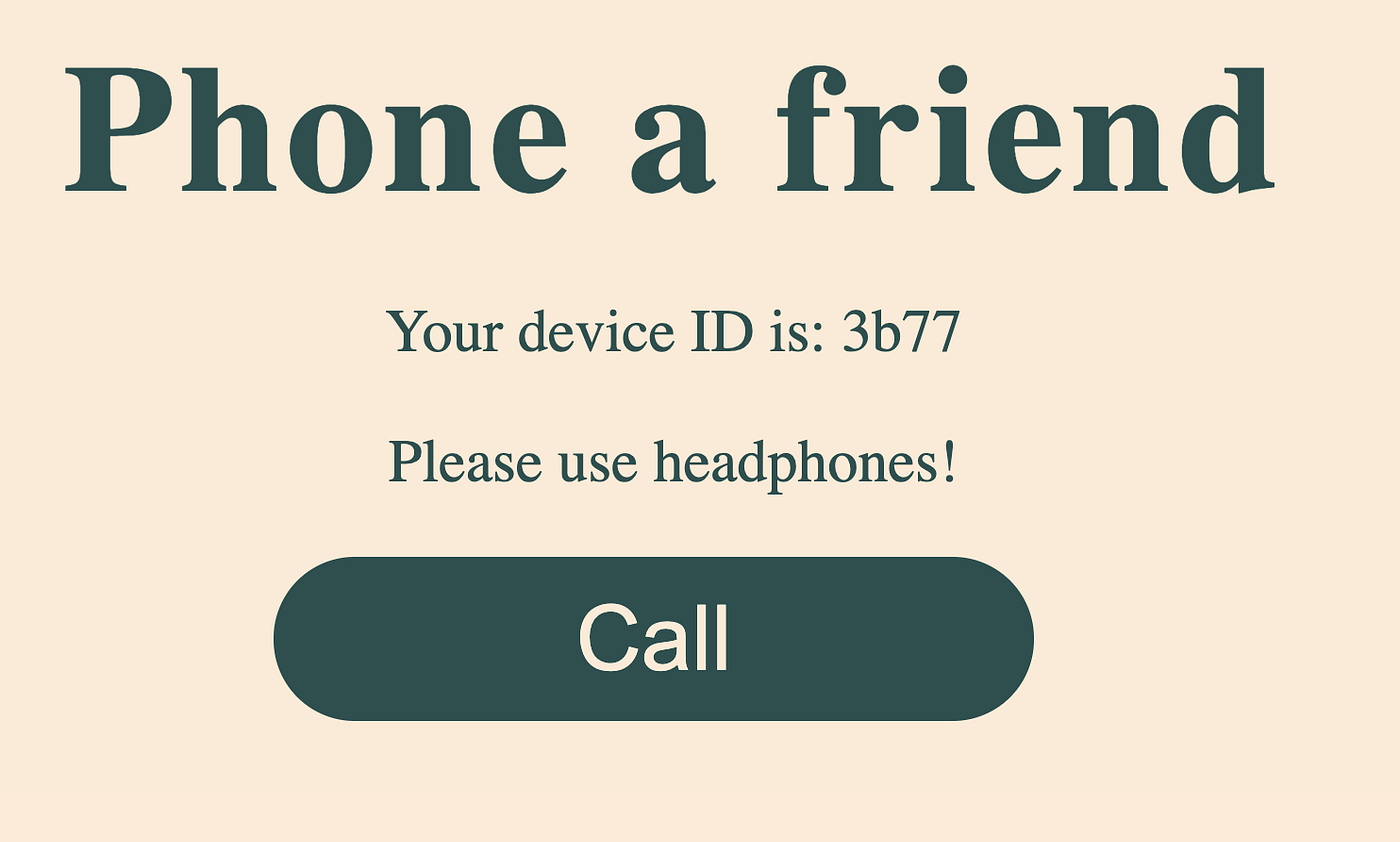
Alright, so you’ve got the permissions, now you’ll want to make sure each user knows what their peer ID is so that they can make connections. The peerJS framework gives us a bunch of event listeners we can call on the peer we created earlier on. So when the peer is open, display the peer’s ID:
peer.on('open', function () {
    window.caststatus.textContent = `Your device ID is: ${peer.id}`;
});
Here you’re replacing the text in the HTML element with the ID caststatus so instead of "connecting..." , you should see "Your device ID is: <peer ID>"
While you’re here, you may as well create the functions to display and hide various content, which you’ll use later. There are two functions you should create, showCallContent and showConnectedContent. These functions will be responsible for showing the call button and showing the hang up button and audio elements.
const audioContainer = document.querySelector('.call-container');
/**
 * Displays the call button and peer ID
 * @returns{void}
 */

function showCallContent() {
    window.caststatus.textContent = `Your device ID is: ${peer.id}`;
    callBtn.hidden = false;
    audioContainer.hidden = true;
}

/**
 * Displays the audio controls and correct copy
 * @returns{void}
 */

function showConnectedContent() {
    window.caststatus.textContent = `You're connected`;
    callBtn.hidden = true;
    audioContainer.hidden = false;
}
Next, you want to ensure your users have a way of connecting their peers. In order to connect two peers, you’ll need the peer ID for one of them. You can create a variable with let then assign it in a function to be called later.
let code;
function getStreamCode() {
    code = window.prompt('Please enter the sharing code');
}
A convenient way of getting the relevant peer ID is by using a window prompt, you can use this when you want to collect the peerID needed to create the connection.
Using the peerJS framework, you’ll want to connect the localPeer to the remotePeer. PeerJS gives us the connect function which takes in a peer ID to create the connection.
function connectPeers() {
conn = peer.connect(code)
}
When a connection is created, using the PeerJS framework’s on(‘connection') you should set the remote peer’s ID and the open connection. The function for this listener accepts a connection object which is an instance of the DataConnection object (which is a wrapper around WebRTC’s DataChannel), so within this function you’ll want to assign it to a variable. Again you’ll want to create the variable outside of the function so that you can assign it later.
let conn;
peer.on('connection', function(connection){
conn = connection;
});
Now you’ll want to give your users the ability to create calls. First get the call button that’s defined in the HTML:
callBtn = document.querySelector(‘.call-btn’);When a caller clicks “call” you’ll want to ask them for peer ID of the peer they want to call (which we store in code in getStreamCode) and then you’ll want to create a connection with that code.